Managing Templates
In this section, you will learn how to manage a template namely searching, preview, edit, and delete a template.
Searching a template
Quickly search exisiting templates in your organization.
To search a template, do the following:
-
Login to the platform.
-
Click the Collaborate module, and then click the Templates sub-module.
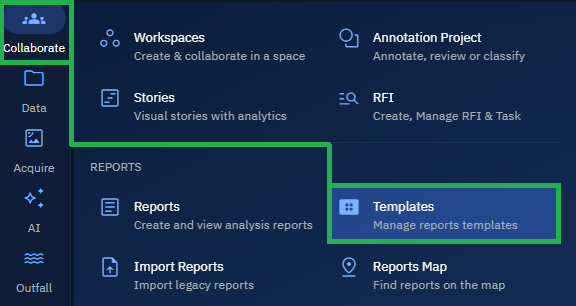
The Templates Dashboard is displayed.
- In the Templates Dashboard page, type the partial or full name of the templates that you want to find in the Search field.
The platform starts displaying templates matching the partial or full name on the screen.
Previewing a template
Get to view an existing template.
To preview an existing template, do the following:
-
Login to the platform.
-
Click the Collaborate module, and then click the Templates sub-module.
The Templates Dashboard is displayed.
- In the Templates Dashboard page, locate a template that you want to preview, click the More Options button, and then select the Preview option.
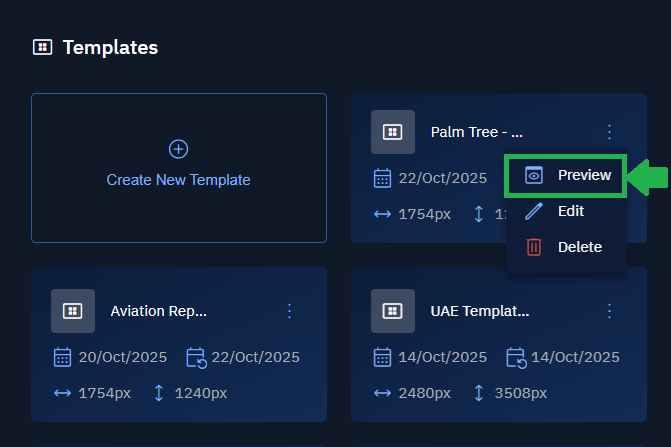
The preview of the template is displayed.
Editing a template
-
Login to the platform.
-
Click the Collaborate module, and then click the Templates sub-module.
The Templates Dashboard is displayed.
- In the Templates Dashboard page, locate a template that you want to edit, click the More Options button, and then select the Edit option.
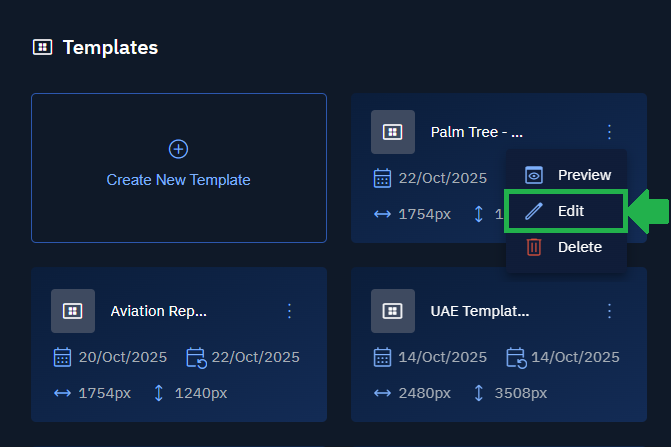
The Edit Template page is displayed.
- Make the appropriate changes and then click the Save Template button.
Deleting a template
-
Login to the platform.
-
Click the Collaborate module, and then click the Templates sub-module.
The Templates Dashboard is displayed.
- In the Templates Dashboard page, locate a template that you want to remove from the platform, click the More Options button, and then select the Delete option.
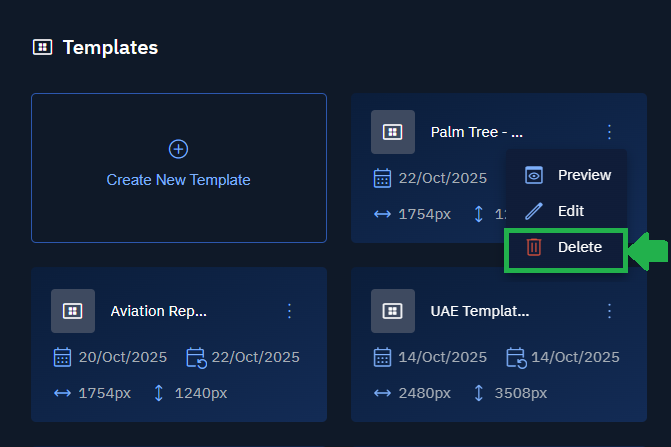
The template is permanently deleted from the platform. page is displayed.
Once a template is permanently deleted, it cannot be retrieved.